Regular readers to my blog would have noticed new changes to my blog.
Yes, I'm happy to change my blog design!! I hope you people like it and if you find any flaw please inform me.
I'm not that good at css so it took me some time to make the changes.
I also have changed my logo.
I hope this new design gives better readability.
Saturday, September 12

Thursday, September 10
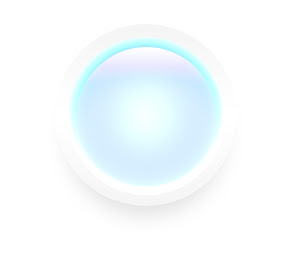
Simple Glossy Button
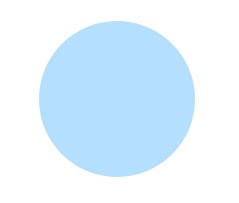
1.Create a new file. A larger file is better. I used 600*500px with white background.Draw a circle with 150*150px dimension(TIP:Hold shift button while dragging to get perfect circle). I used #b5dfff color.
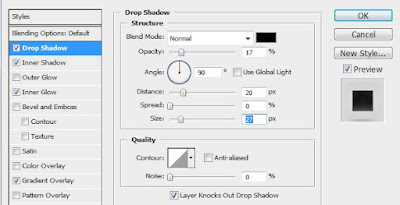
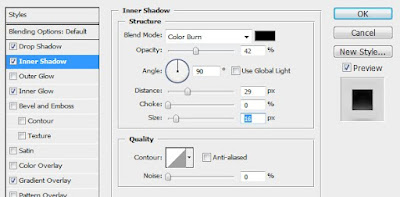
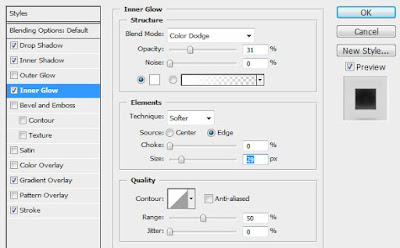
2.Double click the circle layer in the layer window to bring layer style window.(or you can select from menu Layer->Layer style). Apply the following effects.
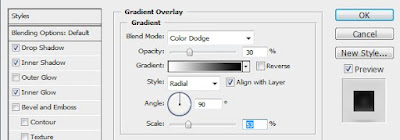
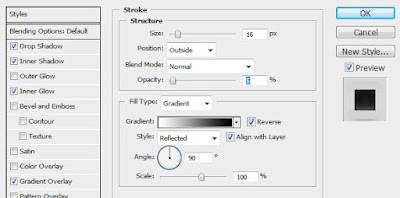
3.Now the circle will appear as:
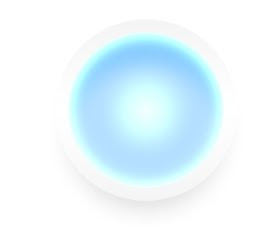
4.Now create a new layer and draw a white circle slightly smaller than the previous circle so that it looks like:
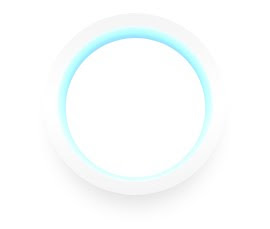
5.Apply the following Layer styles to the new circle:
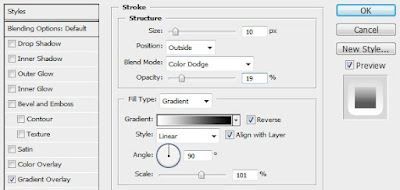
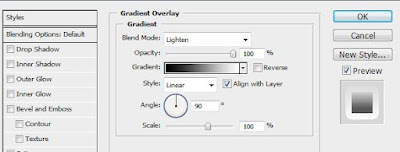
6.Now change the blending option of the new circle to soft light. Now the final image looks like.

2.Double click the circle layer in the layer window to bring layer style window.(or you can select from menu Layer->Layer style). Apply the following effects.


3.Now the circle will appear as:

4.Now create a new layer and draw a white circle slightly smaller than the previous circle so that it looks like:

5.Apply the following Layer styles to the new circle:


6.Now change the blending option of the new circle to soft light. Now the final image looks like.

I'm Back
Hey folks,
I'm feeling too bad not able to post for a long time.
Now guess what I'll be updating my blog with tutorials again.
So keep watching and subscribe to my blog.
I'm feeling too bad not able to post for a long time.
Now guess what I'll be updating my blog with tutorials again.
So keep watching and subscribe to my blog.
Subscribe to:
Posts (Atom)